
Using the AI assistant
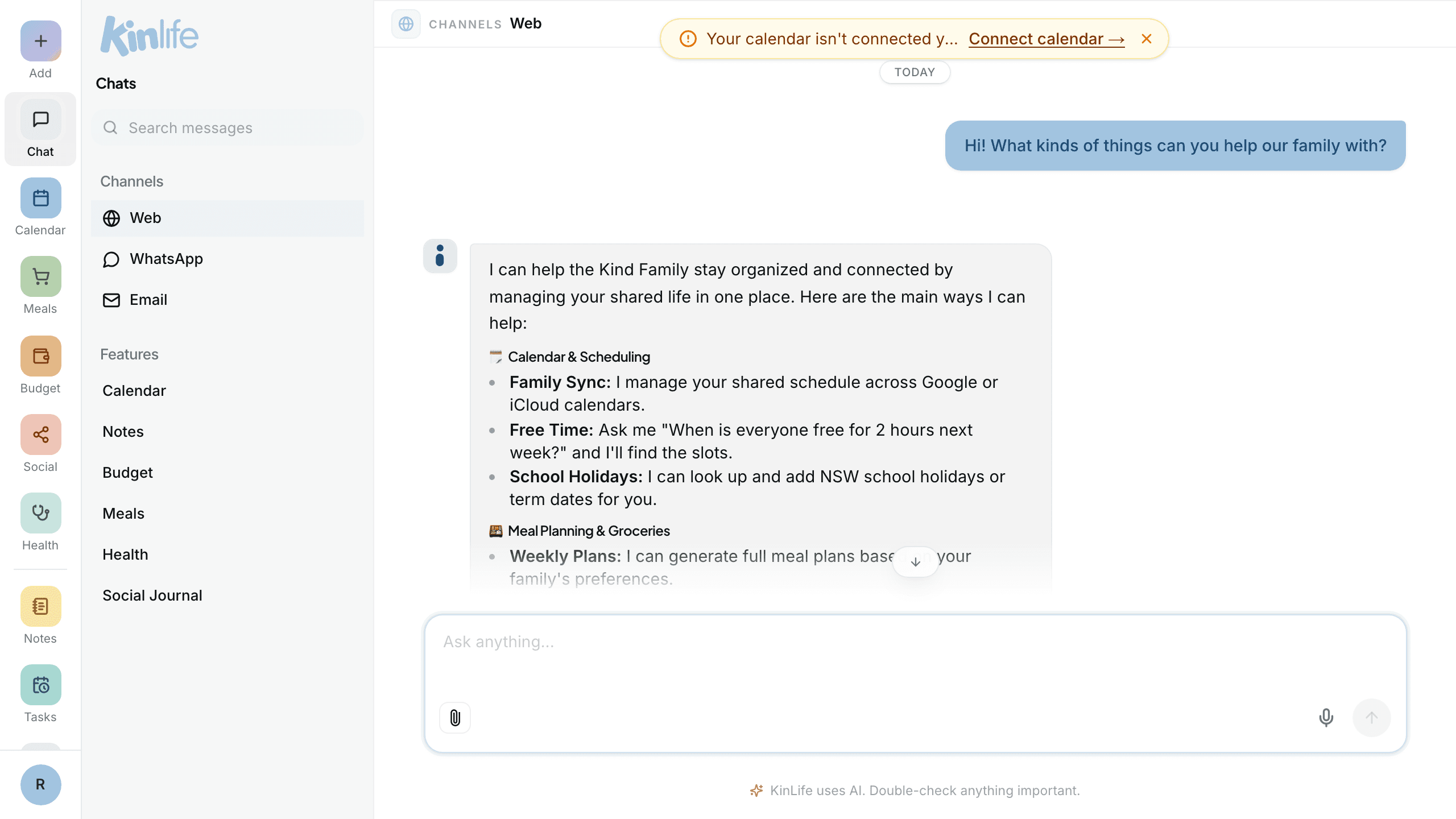
The assistant is a conversation, not a set of forms. Tell it what you need in plain language and it takes action: schedules events, builds lists, sends messages, looks things up, and answers from your own documents. It already knows who your family is.
Talking to the assistant
Open Chat and type. You don't need to phrase things carefully or use keywords. Be as casual as you would with a capable assistant. If a request is ambiguous, it asks a quick follow-up rather than guessing.
What it can do
A flavour of what people ask, all from one chat box:
- “Find a free 2-hour slot for me and Emma next week”
- “Remind Sophie about her maths test 24 hours before”
- “Plan us four dinners this week using what we have”
- “Summarise this YouTube video on toddler sleep”
- “How much is mince at Woolworths vs Coles right now?”
- “What's Emma's email and does she have WhatsApp?”
For the live-lookup powers (prices, weather, maps, web, travel) see Ask the world. For coordinating with people outside your family, see Event planning.
Voice input
Tap the microphone button next to the chat composer and just talk. Your speech is transcribed into the input field in real time using your browser's built-in speech recognition, ideal when you're cooking or driving. Pause for about a second and a half and the message sends on its own; tap the microphone again to stop and send straight away. On WhatsApp you can also send voice notes.
The channel chats
There is no “new chat” button. Instead you have a small set of perpetual chats that run forever, listed in the chat sidebar:
- Channels: Chat, WhatsApp, and Email. Every WhatsApp message you ever send lives in one WhatsApp thread; same for email. Chat is your home chat on the web.
- Feature chats: calendar, notes, todos, reminders, meals, budget, health, and saved links each have their own assistant thread, mirrored in the panel on those pages.
In the app, the assistant reads the recent part of the active thread plus a rolling summary of everything older, so it keeps context without you re-explaining. On WhatsApp and email it reads your last 30 messages, and it can search anything older when you refer back to it.
Quote-reply
On WhatsApp you can reply to a specific earlier message to pull it back into focus, even if it's scrolled well out of view. The quoted message is surfaced to the assistant so it knows exactly what you're referring to. Replying to one of KinLife's emails works the same way. The web chat has no quote-reply: say what you're referring to, or search for it (below).
Finding past messages
The search box at the top of the chat sidebar runs a full-text search across all of your chats. Click a hit to jump straight to that message in the right thread. The assistant can search for you too, e.g. “what did the coach say about the carnival?” and it'll dig through your history.
How its memory works
KinLife keeps one persistent memory for your whole family: shared context like each child's school, recurring commitments, and dietary needs. It draws on this in every conversation, so you don't re-explain your family each time. There is no separate per-person memory, and the assistant's persona is shared by the family too.
Memory builds up automatically as you use the app, and you can view and edit it in Settings → Memory. See Settings & personalisation for how to shape the assistant's persona and tone.