
Calendar guide
KinLife keeps your family calendar in two-way sync with Google Calendar or Apple Calendar (iCloud). Events you create in KinLife are stored in KinLife and written to your family's shared calendar; events created elsewhere stay owned by Google. For the ones you organised yourself, KinLife adds family context (categories, participants, linked notes) on top; an invite someone outside your family sent you is shown for awareness and answered with the RSVP buttons.
Connect Google Calendar
The first time you open the Calendar tab, KinLife will ask you to connect your Google Calendar. Click Connect Google Calendar, approve the permissions on Google's sign-in page, and you'll land back on the calendar view with your events loaded.
Each family member connects their own Google Calendar and chooses who can see it: Share with everyone, Choose who, or Not now. You'll see the events of everyone who shares with you overlaid in the family view, colour-coded by member.
Prefer Apple? KinLife also connects to Apple Calendar (iCloud) with the same two-way sync. Whichever provider the first adult connects locks the family to that provider, so everyone stays in sync. The walkthrough below is written for Google, and the day-to-day flow is much the same on Apple, with two differences: there is no Google Meet option, and an RSVP only updates your own copy (see below).
If you ever want to disconnect or re-auth, head to Settings.
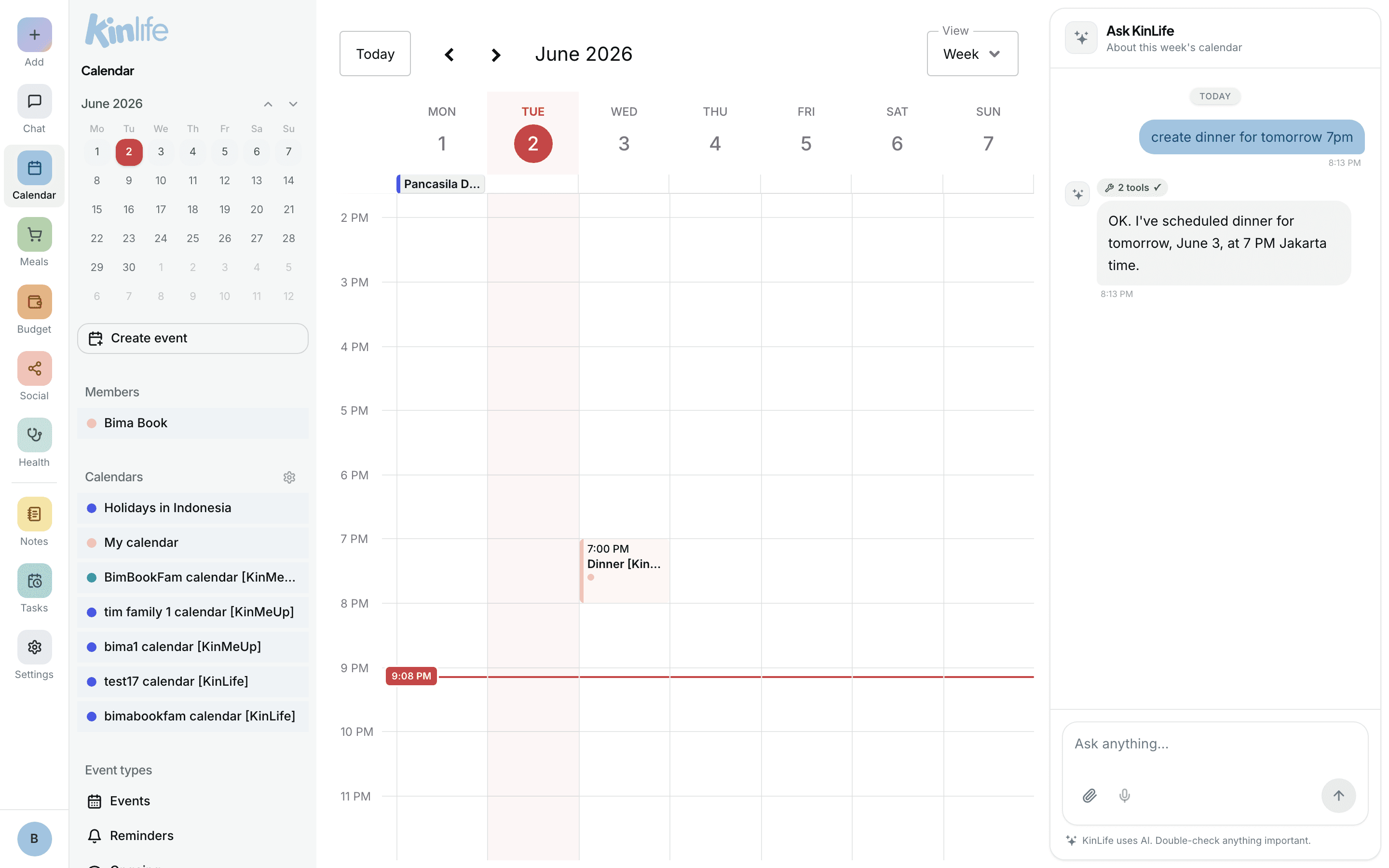
Event types: Events, Reminders, Ongoing
KinLife classifies every calendar entry into one of three buckets. Each has different defaults and shows up differently in the calendar view.
- Events: standard events with a time, location, and participants (soccer practice, meetings, dinners). Most things are this.
- Reminders: annually-repeating significant dates (birthdays, anniversaries). KinLife auto-sets yearly recurrence, so you only enter each one once.
- Ongoing: full-day info periods that span multiple days (school holidays, term breaks, a sports season). Always all-day, no start time, paired with an end date.
Create an event
Click Create event at the top of the calendar sidebar. Fill in a title, a start date and time, and an end date and time. Pick a category (School, Home, Work, or Other) and tag which family members are involved.
The Notes field is free-text that lands inside the event's description in Google Calendar, useful for instructions, meeting agendas, or anything else you'd normally type in the GCal description field.
External guests (not in your family) go in the Guests box as comma-separated emails. They'll receive a standard Google Calendar invite.
Participants vs Aware
Every event has two member lists:
- Participants: people who are actually attending. Each one shows as a colour dot on the event. At least one participant is required.
- Aware : people who should know about the event but aren't going. For example: mum should know about dad's 7am golf so she doesn't double-book breakfast. Their colour dot on the event is drawn faded.
Link notes to an event
Any note from Notes can be attached to an event. The link shows up in both places: the event's detail dialog (clickable, jumps to the note) and the event's Google Calendar description (as a deep-link URL). Good for packing lists, gift ideas, meeting agendas, recipes.
To attach: open the event form, pick the note in the Linked notes selector. To detach, remove it the same way.
Let KinLife manage an existing Google Calendar event
Events that already exist in Google Calendar show up in the KinLife calendar as plain events. For the ones you organised yourself (created directly in Google Calendar), you can add KinLife's extra metadata (category, family participants, notes, linked lists): click the event, then click Edit. The form opens as Let KinLife manage this event, and saving it hands the event to KinLife.
The dialog that opens shows a clear banner explaining what will change:
- KinLife appends
[KinLife]to the event's title. - The description is rewritten into KinLife's structured format (category, participants, your notes, linked lists, and a deep-link back to KinLife).
- The original event date, time, location, and attendees are kept as-is.
If the original event was organised by another family member, the banner tells you so. KinLife pushes the changes as them (with your family's permission), which keeps every attendee's calendar in sync.
An invite organised by someone outside your family (a coach, a Calendly booking, a colleague) is shown for awareness only. KinLife can't change it, because only the organiser can: Edit isn't offered. Answer it with the Yes / Maybe / No buttons (see RSVP to an invite), or change or decline it in Google Calendar.
An event that sits on your own Google Calendar can instead be moved onto the shared family calendar, so the whole family sees it: open it and click Move to family calendar.
RSVP to an invite
When someone invites you to an event via Google Calendar, the event detail dialog in KinLife shows Yes, Maybe, No buttons at the bottom. The currently-selected answer is highlighted. Click a different one to change your response. Your RSVP is pushed to Google Calendar immediately, and the organiser gets notified the same way they would if you'd responded from Google Calendar directly.
On Apple Calendar (iCloud), KinLife updates your own copy of the event but does not send the organiser a reply, so let them know directly if they need your answer.
RSVP controls are hidden on events you organised yourself (there's nothing to respond to on your own event).
How two-way sync works
The rule: whoever created an event owns it. An event created in KinLife is stored in KinLife and kept in sync with your calendar. An event created in Google Calendar stays Google's, and KinLife keeps its own layer (category, classification, participants, linked notes, structured description) on top.
- Create in KinLife: saves the event and writes it once to your family's shared calendar, which every adult in the family can see.
- Edit in KinLife: only the fields you actually changed are pushed to Google Calendar. Any hand-edits you made directly in GCal between loads are preserved.
- Edit in Google Calendar directly: on the next calendar refresh in KinLife, the updated title / time / description flows back in. You can edit in either place.
- Delete in KinLife: removes a KinLife-created event from the family calendar, along with any per-member copies older events still have. KinLife never deletes an invite that someone outside your family organised: Delete is greyed out or refuses it, and the original Google Calendar event is left untouched.
Filters
The calendar sidebar (on a phone, the Calendar filter section of the menu) has filters for family member, event type, who is participating or aware, and category. Use them to declutter the view: "just Alice's school events", "everything but reminders", etc. Filter selections are persisted locally, so they stick across reloads.
Delete or stop tracking
The Delete button in the event detail dialog has slightly different semantics depending on who owns the event:
- KinLife-created event (you or a family member created it here): deletes the event from the family calendar, and from any per-member copies an older event still has. Same as deleting the event in Google Calendar directly.
- Invite organised outside your family (a coach, a Calendly booking, a colleague): KinLife won't delete it. The Delete button is greyed out or answers "This event was organised by someone outside your family. Decline it in Google Calendar to remove it." The event stays on your calendar and everyone else's until you decline it in Google Calendar (or answer No with the RSVP buttons).