
Documents & the Knowledge Center
Share a document and it doesn't just sit in a folder, KinLife reads it, puts its dates on the calendar when you ask, and keeps what matters as family memory. Browse what it keeps under Settings, Memory.
Uploading a document
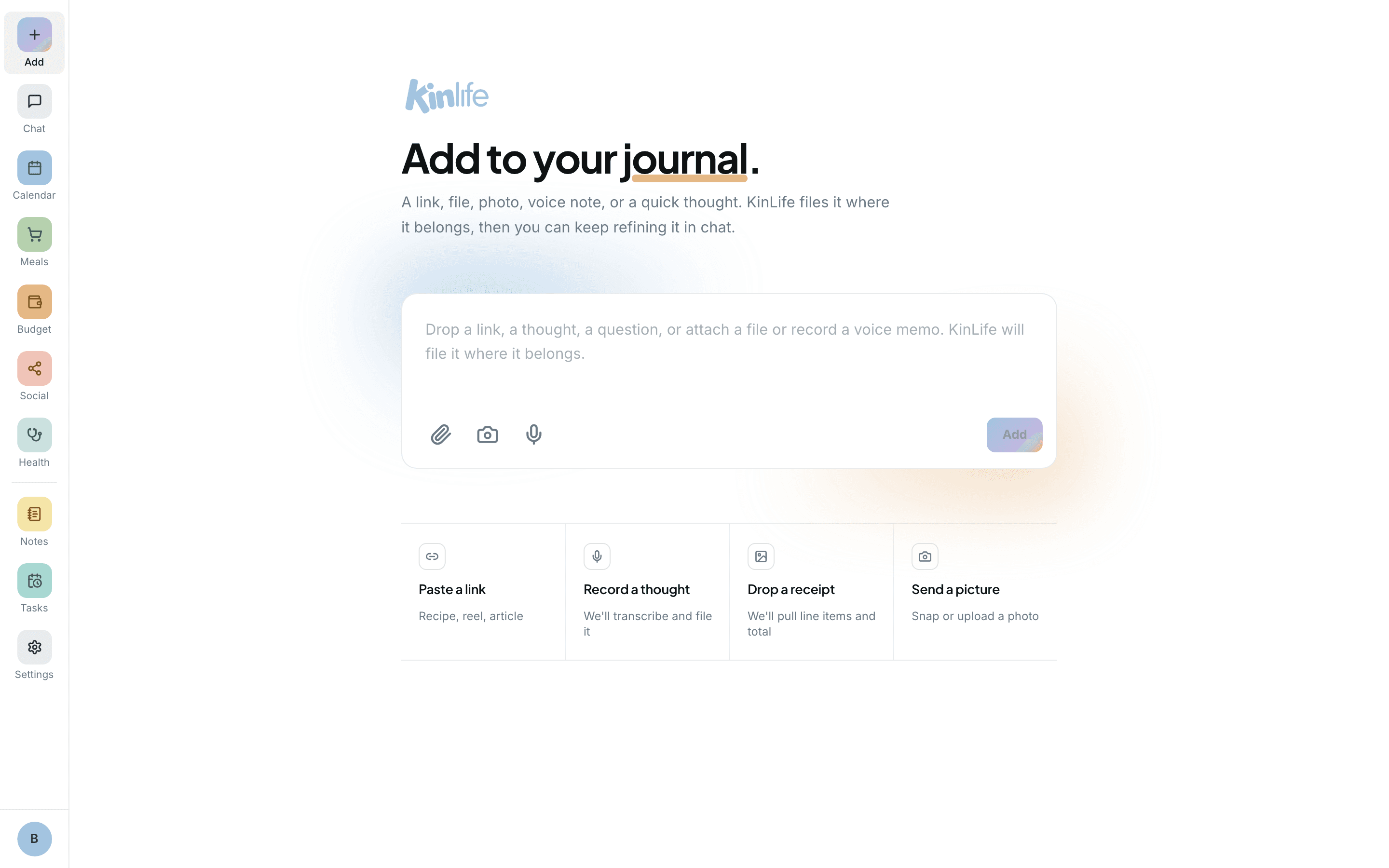
Drag a file into chat, attach it from the Add page, or send a photo via WhatsApp. PDFs, photos, and images up to 20 MB are supported, including a snap of a notice on the fridge.
Getting the dates onto the calendar
The flow for anything with dates in it:
- 1KinLife reads the document and finds the dates, times, and details.
- 2It lists what it found in its reply and asks which ones to add.
- 3Before it adds an event, it checks the calendars of the people involved and tells you about any clash.
- 4The events you chose go onto the family calendar, and onto your connected Google or iCloud calendar.
Great for school term calendars, newsletters, sports schedules, club notices, and handbooks.
What KinLife remembers
In the background, KinLife picks out anything worth remembering and files it on the family memory page it belongs to: term dates on the school page, a phone number with your contacts, and so on. Facts about the people in your family, like names, ages and school years, are kept on your About us page.
For a document you want read in full, such as a term calendar or a handbook, ask the assistant to “remember everything in this document”. It reads the whole thing, writes the lasting facts onto the right pages, and checks what it wrote against the original before it finishes. On the Resources page, a document shows a pulsing blue dot while that runs, green when it is ready, and red if something went wrong.
Asking questions
Once KinLife has filed what a document says, you can ask the assistant about it in plain language. It answers from what it has filed on your memory pages, not by searching the original file, so ask it to “remember everything in this document” first if you will want small details, like a teacher's email:
- “When is Grade 5's swimming carnival?”
- “Who is the music teacher and what's their email?”
Memory Jobs
The Jobs view (/memory/jobs) shows the most recent memory work that has run in the background, and a failed filing job can be retried with one click. If reading a whole document fails partway, it is marked failed (not silently complete) and its dot turns red: ask the assistant to read it again.
What works best
- Clear, well-lit photos extract more reliably than blurry ones.
- Multi-page PDFs are fine: when the assistant reads a document in full, it reads every page.
- Documents are stored securely and stay private to your family. See Privacy & security.