
Reminders & AI scheduling
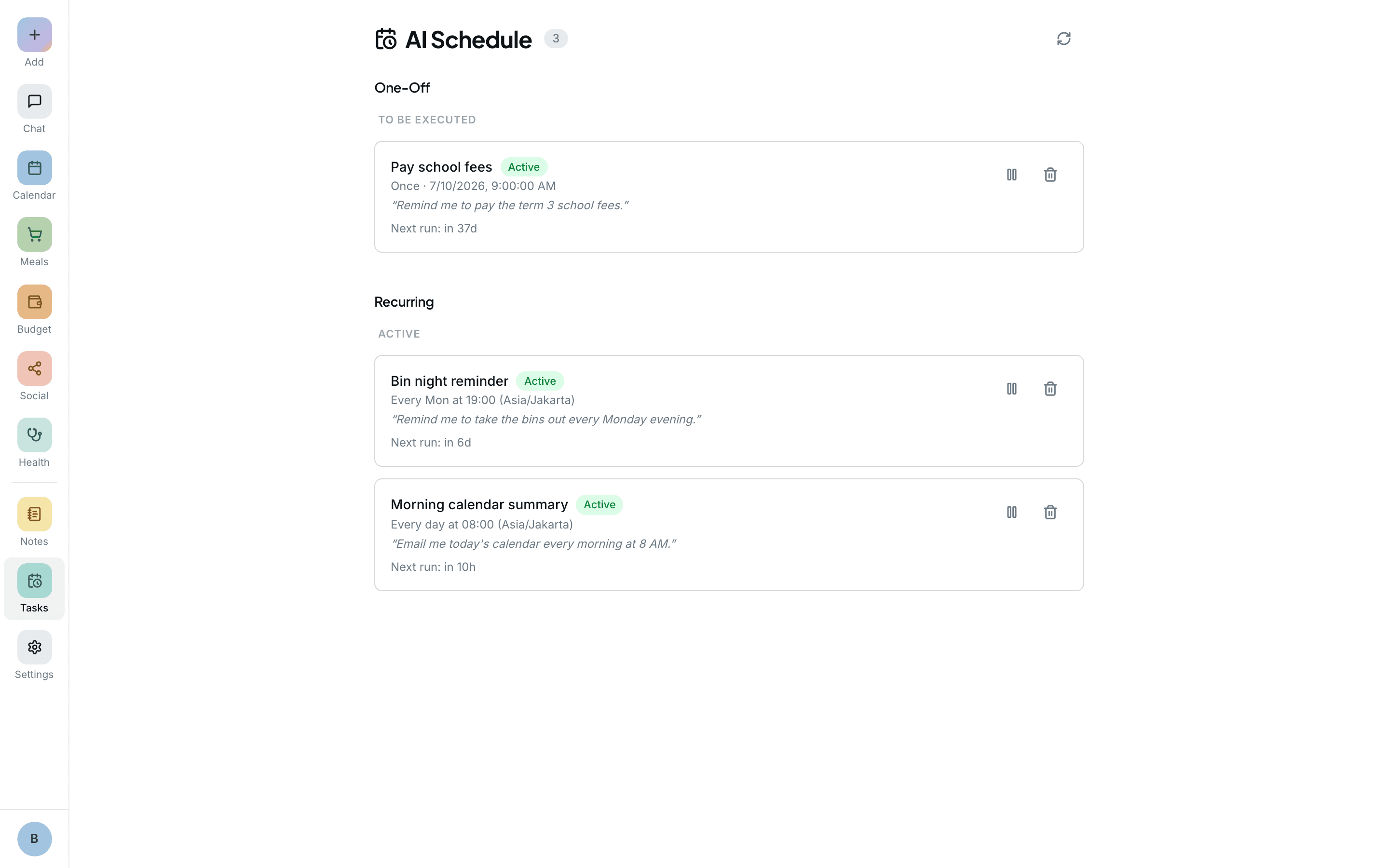
KinLife handles every “do this later” as a reminder: a plain-English instruction the assistant carries out at a time you choose, once or on a repeat. It can be a simple nudge before something happens, or a whole task, like summarising the week. Find them all, along with your daily digests, under Reminders.
Nudges and scheduled tasks
- Nudges: a reminder before something happens, like a test tomorrow or the bins on Tuesday night.
- Scheduled tasks: an instruction the assistant runs for you at a set time, using its normal tools.
Both are reminders: they live in the same list, can be one-off or repeating, and are set up the same way.
Setting a reminder
Just ask the assistant: “remind Sophie about her maths test 24 hours before”. It sets up a reminder for whatever timing you name, a day before, an hour before, at a specific time, or on a repeat.
Or open Reminders, click New reminder, say what should happen, and pick Once, Daily, Weekly, Monthly, or Custom.
Name who it's for and the assistant messages the right people: Sophie about her piano lesson, or the whole family about Saturday's game.
Where reminders go
Each reminder has a Notify on setting, so you choose where it arrives:
- Web app, where it lands in your Chat
A channel you can't receive on yet is greyed out, with a hint on how to set it up. See Email & WhatsApp.
Scheduled tasks
A scheduled task pairs an instruction with a timing: one-off (run once at a time) or recurring (on a schedule). When it fires, the assistant runs the instruction with the tools it has in chat, so it can read your calendar, create events, send messages, and update notes. A run can't set up new reminders of its own.
Create one in plain language: “every Sunday at 6pm, summarise the week ahead and email it to the family”.
Useful automations
- Every Sunday evening: summarise the week and email the family.
- Every Monday morning: flag any scheduling conflicts.
- First of the month: build a shopping list for the month's school events.
- The day before a big event: message the relevant members the details.
Reviewing & editing runs
Each time a reminder runs, it's logged with a status (Running, Done, or Failed), any error, and a link to the full chat transcript you can review. You can pause, edit, or delete a reminder at any time from the Reminders page.